
Issuing receipt
Issuing receipt
You can now issue receipt from My Page.
Notes when issuing receipt
We do not accept requests for issuance with incomplete information.
Please note that we do not issue receipts with certain details—such as the date of issue or the recipient's name—left blank.
The amount shown on the receipt reflects the price after deductions such as points.
If coupons or points are used, the receipt will be issued for the discounted amount. Please note that we cannot issue receipts for the pre-discount amount.
Flow to issuing receipt
You can print it out from your "My Page" starting the day after the bus arrives.
※If points are used, the receipt will be issued for the amount remaining after deducting the value of the points used.
※When reissued, the document will be printed with "Receipt (Reissue)."
※When paying at a convenience store, the "payment receipt" issued at the store serves as the initial receipt; therefore, even when you generate a receipt from your My Page for the first time, it will be marked as a "Duplicate Receipt" (or "Receipt (Re-issue)"). Please note that while the convenience store payment receipt can serve as a receipt, it does not comply with the Qualified Invoice System; if you require a receipt that meets the system's requirements, please generate one via your My Page.
-
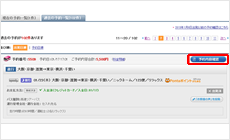
1. Select from "List of reservation history"
After logging into My Page, go to "List of reservation history", and click the applicable reservation detail you wish to issue the receipt for.
-
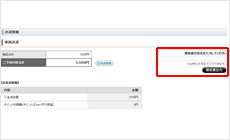
2. Issue receipt
After entering the name of recipient from "Check details of reservation", click "issue receipt", then confirm the details by double checking the name of recipient, and click "issue".